A teammate asks "can you show me what's happening?" and there's a split second where you decide: grab a screenshot, or hit record. Most people answer that question with whatever tool is already open, not with what the recipient actually needs — and it shows. A three-minute unannotated video for a one-line error message wastes everyone's time; a single screenshot of an intermittent glitch that only shows up after ten clicks tells the recipient nothing at all.
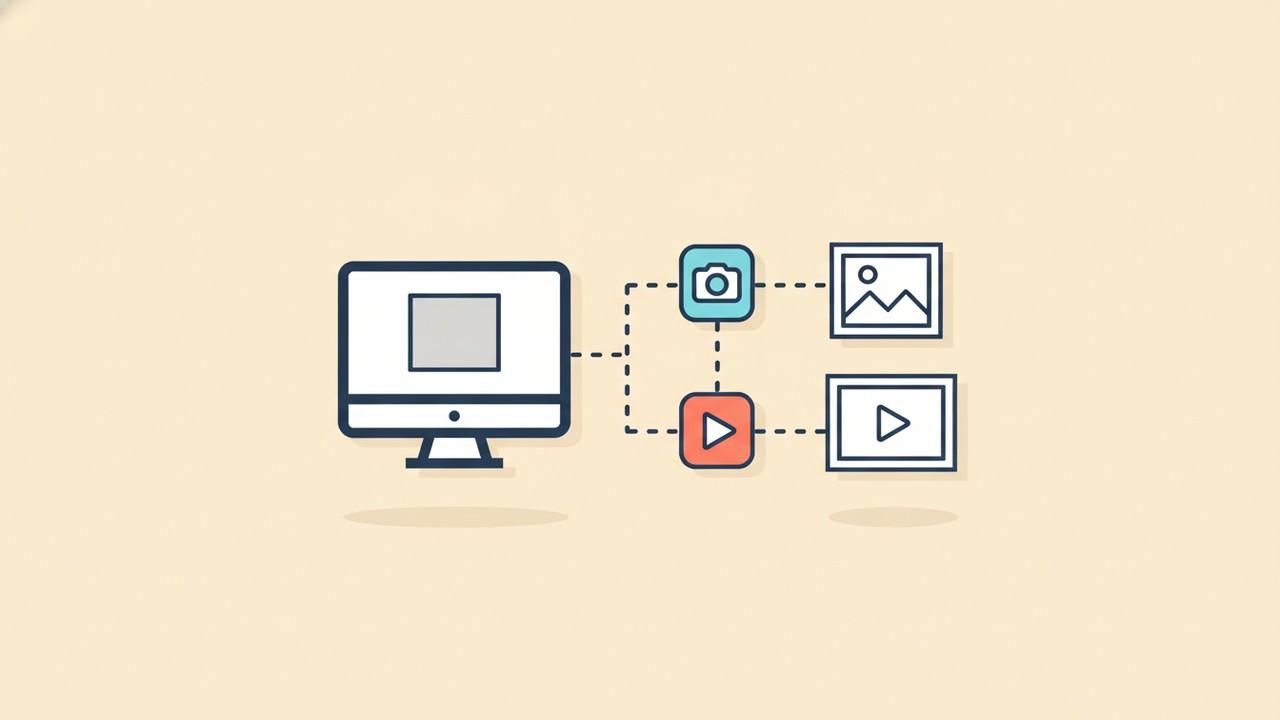
The two aren't interchangeable, and picking between them isn't really about preference. It comes down to whether the thing you're showing is a state or a process.
What Actually Differs Between the Two
A screenshot captures one instant, completely and losslessly. That constraint is also its advantage: it's small, it opens instantly, it pastes into almost anything without a compatibility check, and it can be marked up directly — a circle, an arrow, a blurred detail — in a way that stays anchored to the exact pixel it's pointing at. Nobody has to press play to see what you mean.
A screen recording captures a span of time: motion, sequence, timing, and usually audio. That's the only way to show some things at all — a stuck loading spinner, a drag-and-drop that doesn't register, a bug that only appears after a specific sequence of clicks. The cost is real, though: recordings are far larger than images, take longer to make and longer to watch, usually need a hosting step since most places that happily accept a pasted image won't take a raw video file, and they're much harder to redact — covering a sensitive detail means finding and blurring it in every frame it appears in, not just once.
When a Screenshot Is the Better Choice
- Reporting a single broken state. A wrong value, a layout that's off, an error message on screen — if the whole story is visible in one frame, a screenshot tells it faster than a recording ever could.
- Giving feedback that needs to point at something specific. Circling a typo, highlighting one line in a long document, or drawing an arrow at a misaligned button all depend on marking up a still image. There's no equivalent for "pause here and look at this" in a video that's as immediate as an annotation already sitting on the image.
- Anything that needs review at a glance. Documentation, a knowledge base article, a step-by-step guide — readers scan images far faster than they'll sit through a video, especially if they only need one detail from it.
- Wherever the platform caps upload size or doesn't take video at all. Plenty of ticketing systems, comment fields, and chat tools accept an image paste instantly but choke on or reject a video file outright.
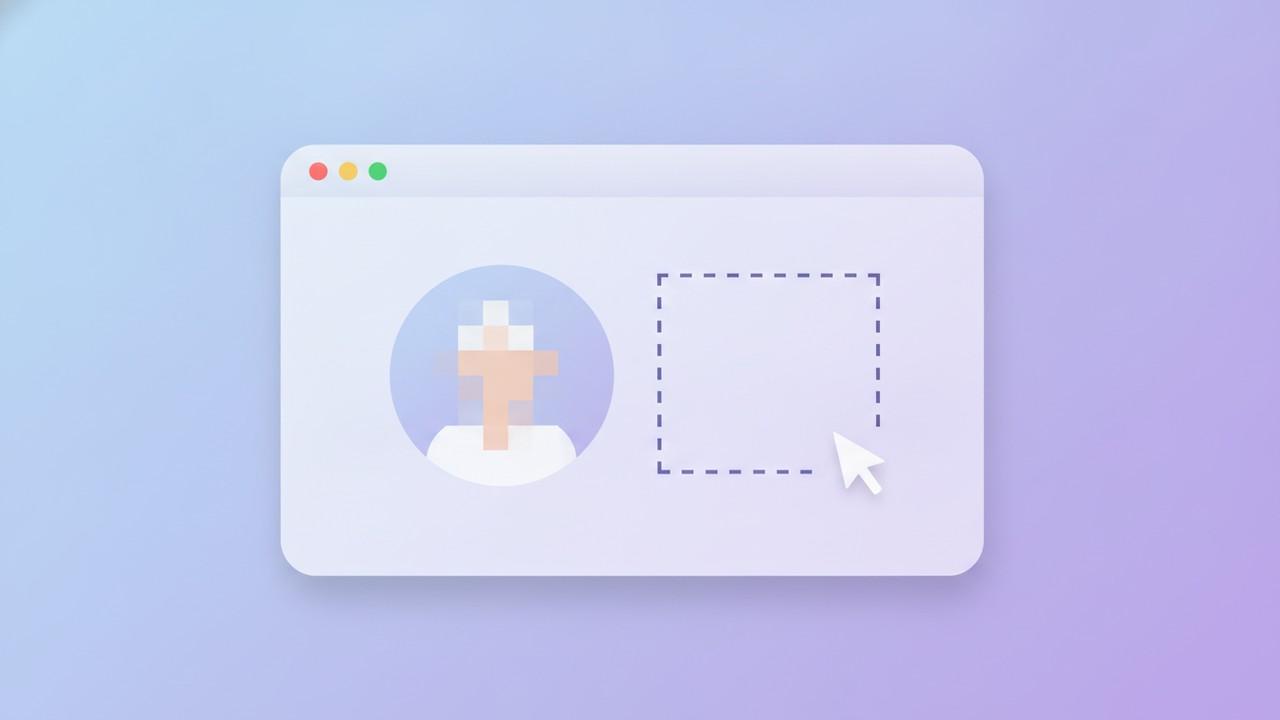
- Anything that needs redaction before it goes out. A screenshot of a support ticket or an account page might have an email address or a stray credit card number sitting in it — one frame to check and blur is a much smaller task than scrubbing sensitive data out of a thirty-second clip.
When a Screen Recording Is Actually Necessary
- Reproducing an intermittent or sequence-dependent bug. If the issue only shows up after a specific series of actions, a screenshot can only ever capture the aftermath — a recording is the only way to show the actual trigger.
- Anything defined by motion or timing. A dropped frame in an animation, a drag that doesn't register, a race condition where two things happen in the wrong order — these are invisible in a still image by definition.
- Walkthroughs where narration adds real context. Talking through why you're clicking something, not just what you clicked, is something a silent image sequence can't do on its own.
- Demonstrating something that updates live. A chart re-rendering, a real-time dashboard, a websocket connection dropping and reconnecting — these need to be seen changing, not seen once.
The Middle Ground: A Sequence of Annotated Screenshots
A lot of what feels like it needs a recording is actually better served by a short series of stills — especially for tutorials and documentation. A numbered sequence of screenshots, each with a callout showing what to click, is faster to build and skim than a recording, easier to update when one step in the middle changes, and far easier to translate or adapt for a different audience than re-recording a whole video over again.
The same logic applies to long content that seems to demand a scrolling video: a scrolling capture that stitches a full page or panel into one tall image usually communicates "here's everything on this page" better than a recording of someone scrolling through it, since the reader can jump straight to the part that matters instead of watching the scroll happen in real time. And when what's actually needed is just a bit of motion to catch someone's eye — a social post, a changelog announcement — a short looping clip built from a still screenshot covers that without the overhead of a full screen recording.
Where a Dedicated Screenshot Tool Fits
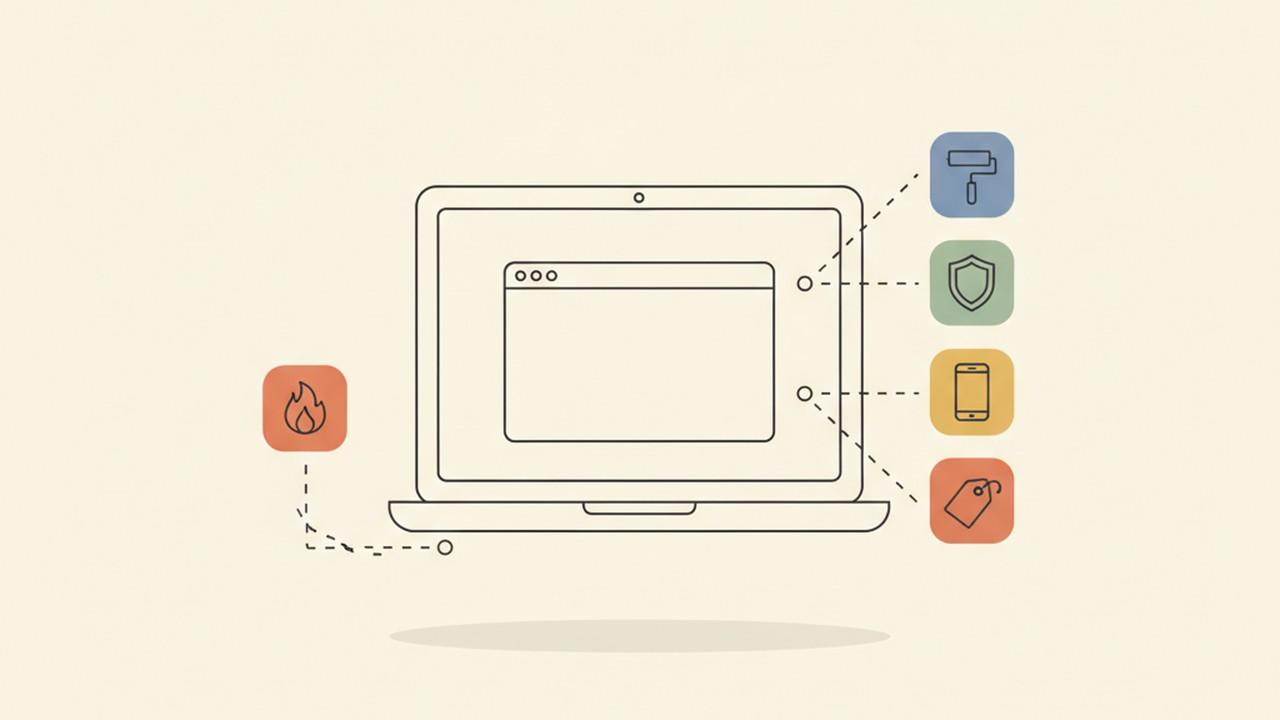
It's worth being direct about the boundary here: Savvyshot is built for the screenshot side of this decision, not the recording side. Its four capture modes — region, window, full screen, and scrolling — all produce a still image, and its video export takes a Pexels background clip and loops it behind that still for a short animated asset, which is a different thing entirely from recording what's actually happening on your screen. If what you need is a real screen recording — narration over a multi-step process, a bug that only shows up in motion — that's a separate tool.
What it does mean is that for the screenshot half of the job, the editor is built around exactly the cases above: a Step Counter tool for numbering a tutorial sequence, a Zoom Callout for magnifying one detail without cropping the rest away, a Spotlight tool for drawing the eye to a specific area, and on-device auto-redaction for covering an email or card number before a screenshot goes out. None of that overlaps with what a recording is for — it's what makes the screenshot side of the decision worth taking seriously instead of defaulting to video because it feels more thorough.
A Quick Way to Decide
- Can the whole point be seen in one frame? Screenshot.
- Does it only make sense in motion, or depend on timing? Recording.
- Are you pointing at something specific, or need to redact part of it? Screenshot — annotation and redaction both work far better on a still.
- Is it a multi-step process someone needs to follow along with? Try a numbered screenshot sequence first; reach for a recording only if the motion itself is the point.
- Does the destination cap file size or reject video? Screenshot, by default.
Most of the time, the instinct to record wins out of habit, not necessity — video feels like it shows "more," even when a single well-chosen screenshot with one arrow on it would have answered the question faster. Reaching for the still first, and only stepping up to a recording when the thing you're showing genuinely can't be captured in one frame, tends to save both the sender and the recipient real time.